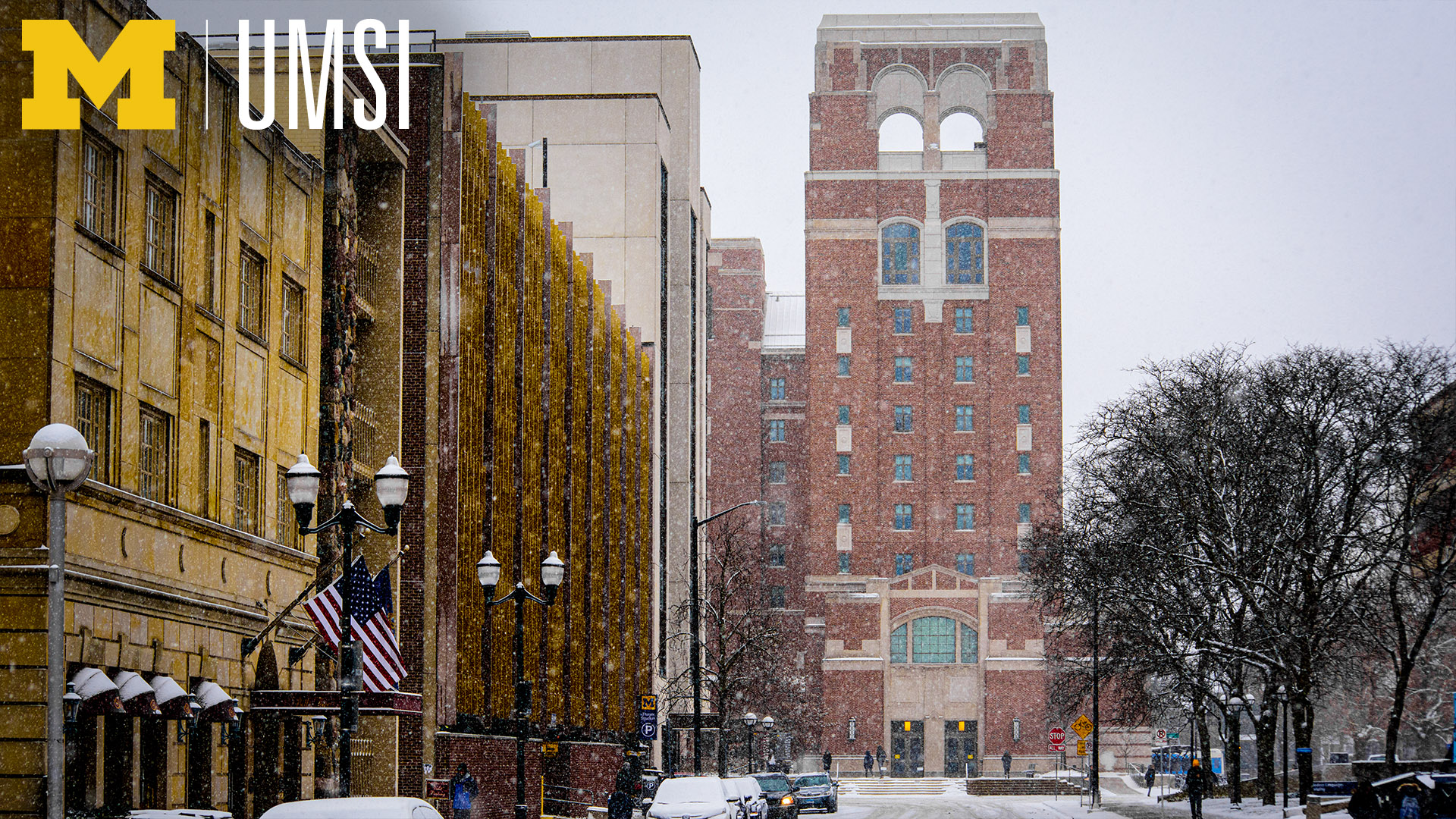
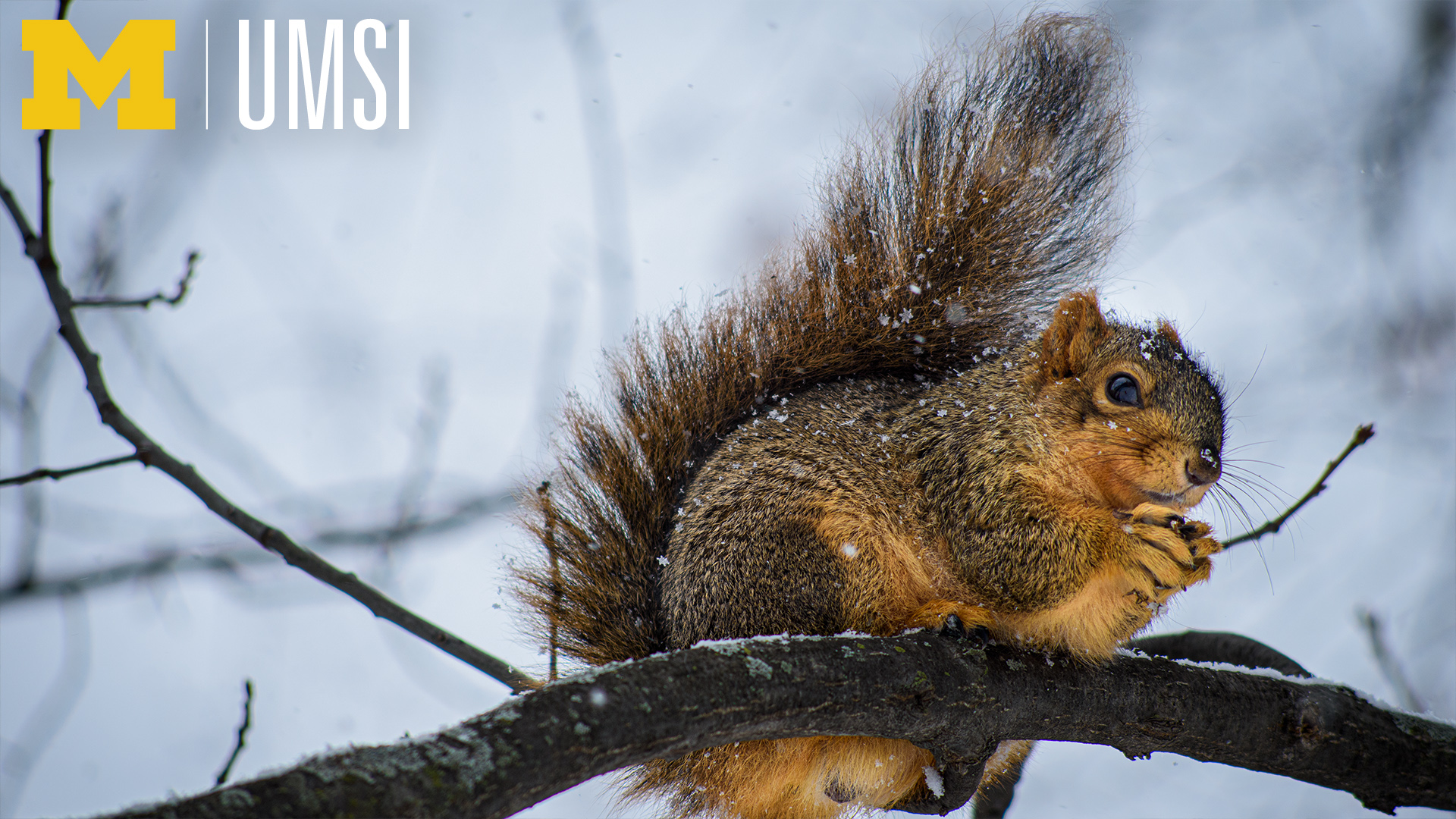
UMSI’s seasonal Zoom backgrounds will bring the spirit of Ann Arbor in winter to your video conferences

Wednesday, 12/16/2020
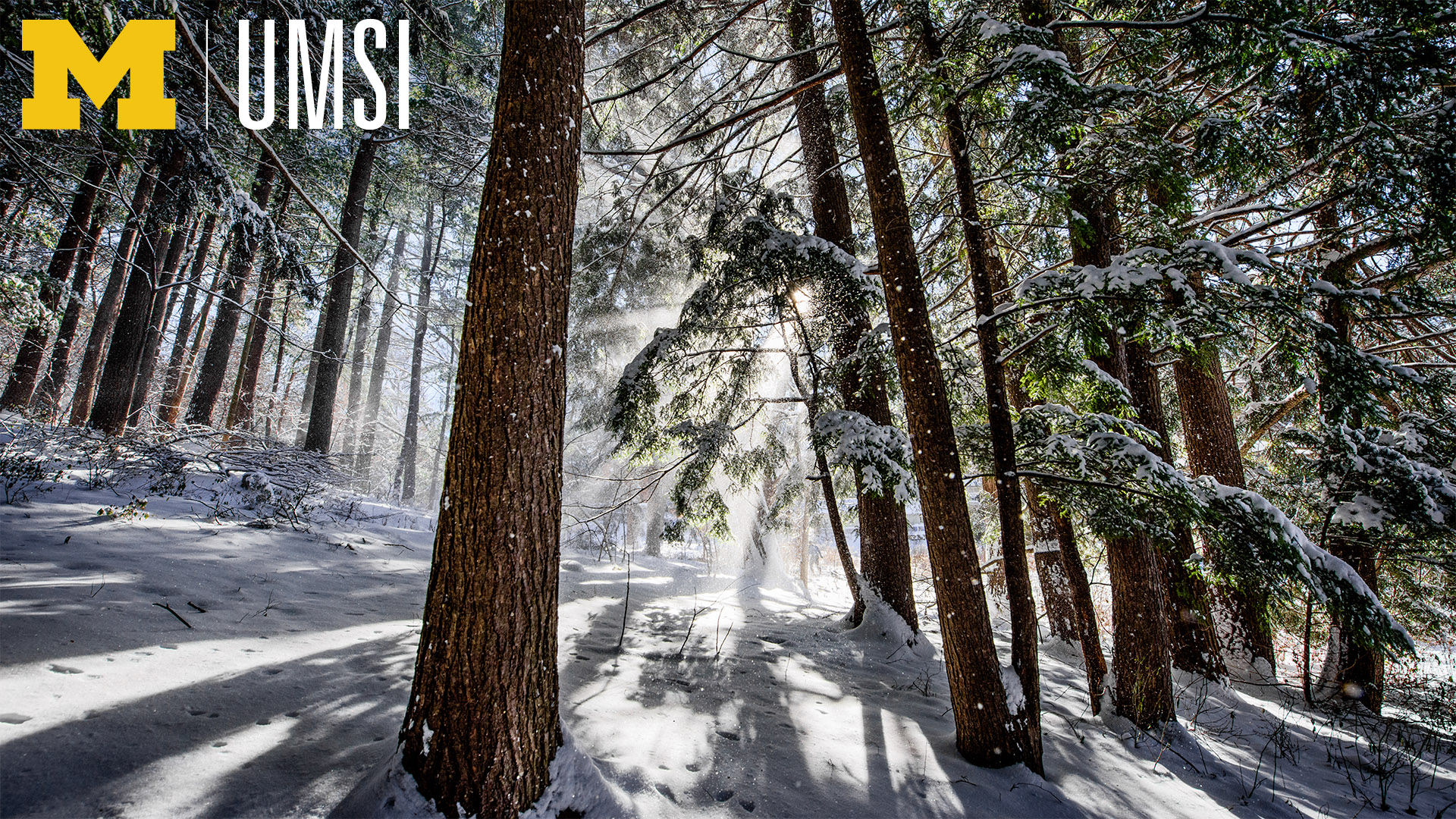
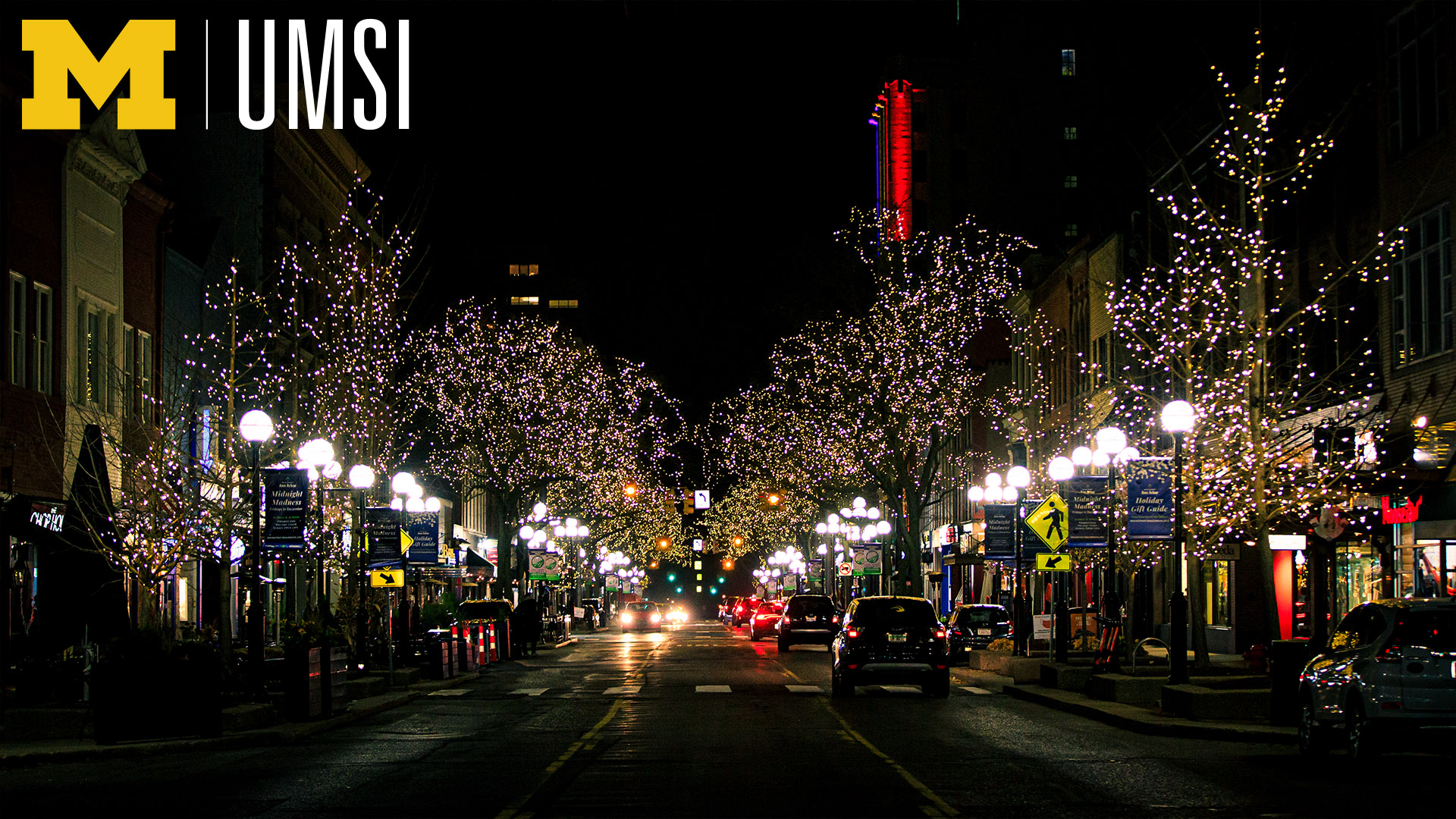
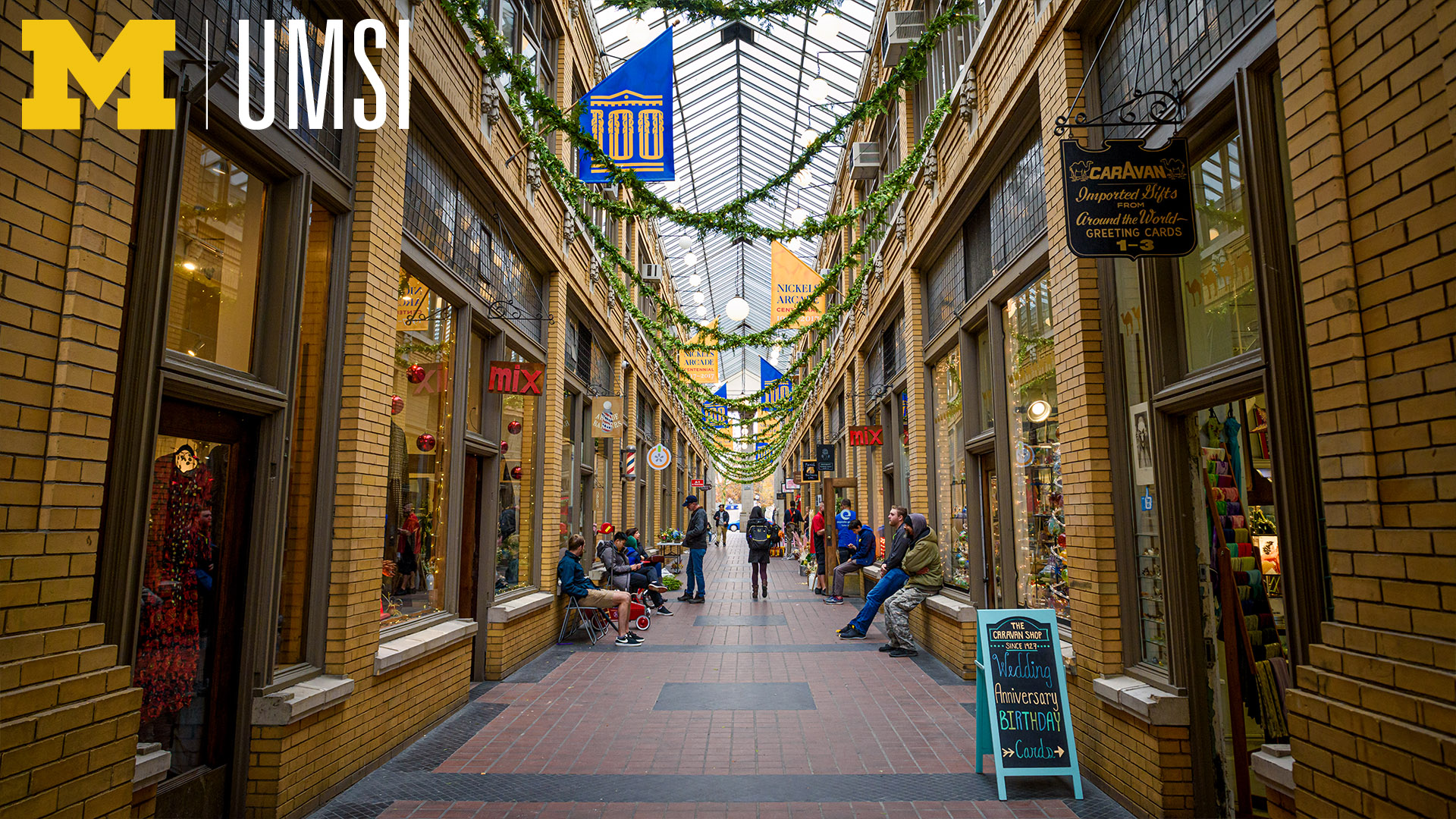
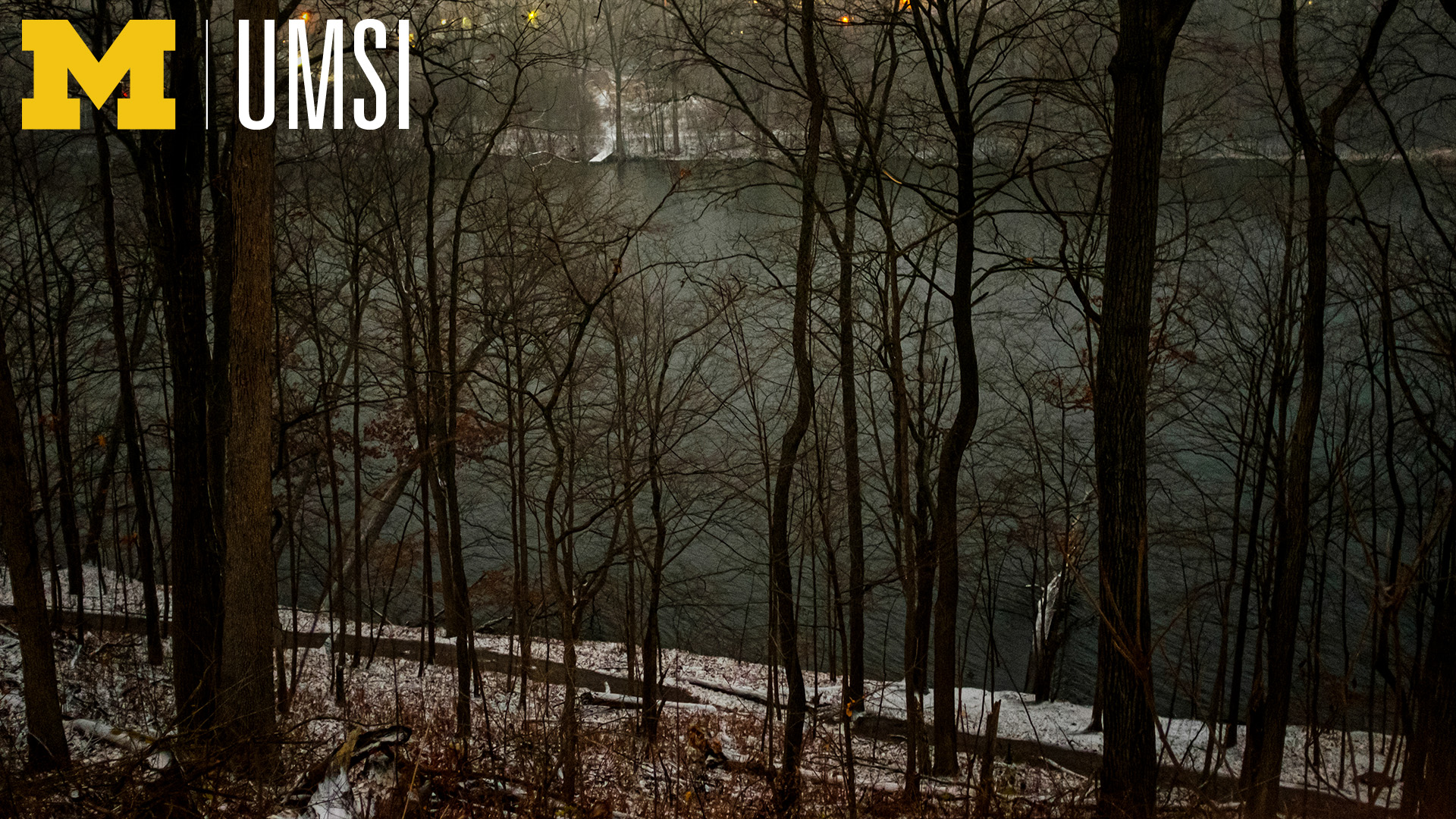
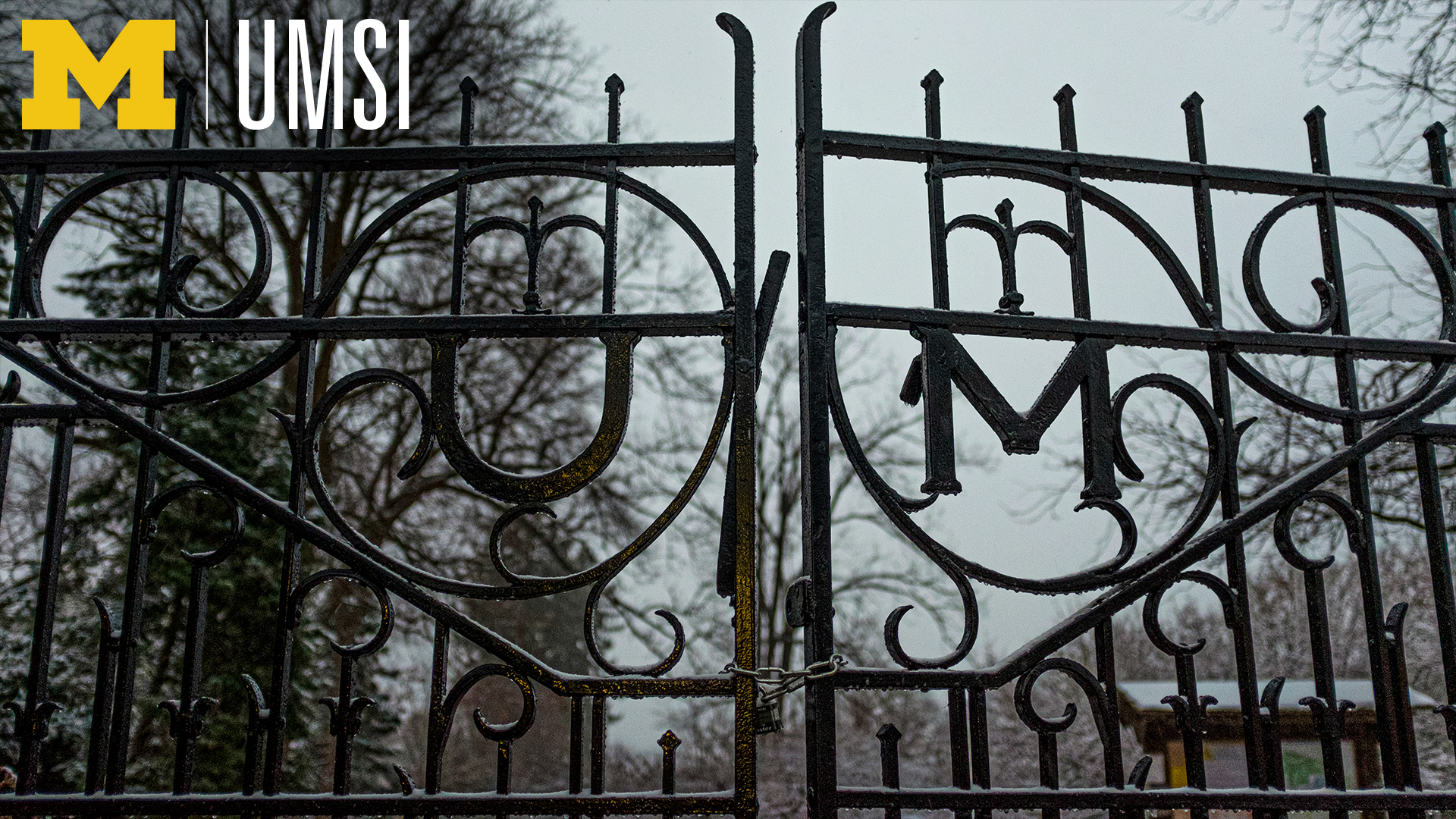
Now you can update your repertoire and get into the A2 winter spirit with these seasonal-themed campus virtual backgrounds. In March, UMSI created an initial set of downloadable options to put you back in your favorite Ann Arbor spots. With the addition of winter scenes, you can take your conference calls from a snow-covered Arb, give your presentation from under the garlands of Nickels Arcade or attend your online class by the glow of the trees on Main Street.
Zoom's "virtual background" feature has proven to be a popular and important tool of 2020, helping users to protect their privacy and personalize their look in virtual meetings and classes.
To use the backgrounds:
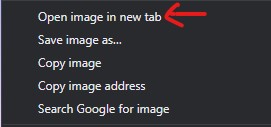
Simply click any of the photos below to open the full-size image, then right click and choose "Save Image As" to save it to your computer. (Be sure to open the image first. If you save directly from this web page, the image will be cut off when it appears as your background.)
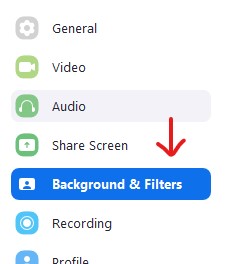
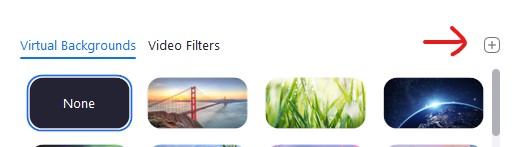
Next, in Zoom, click the gear arrow to view your preferences and select the “Background and Filters” option. You will see a selection of default options, and a "+" button above the top right option. Click it to select and upload your selection. Your new background is all set!